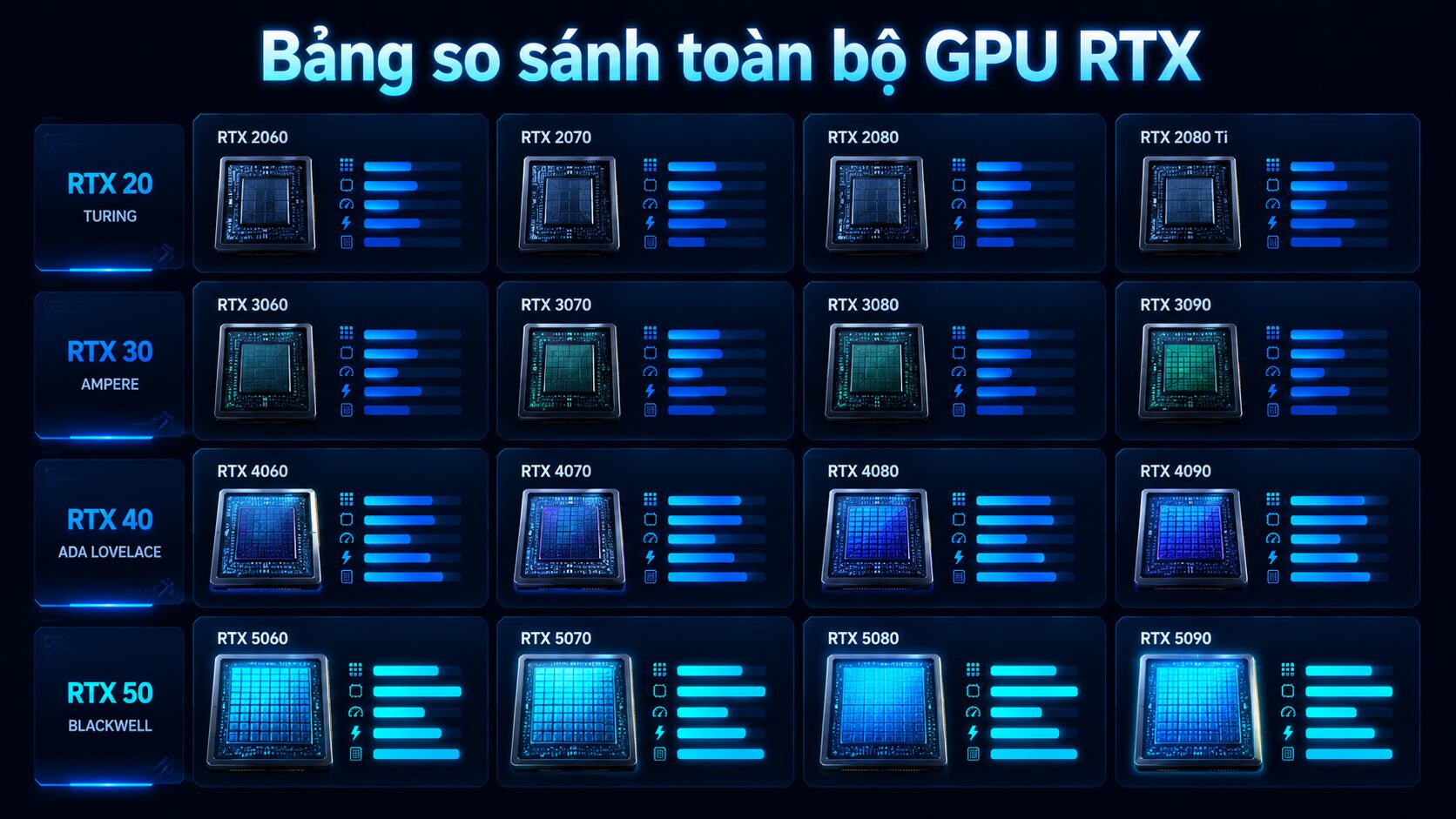

Bạn có code PyTorch chạy được trên laptop nhưng cần GPU mạnh để train nghiêm túc? Bài tutorial này hướng dẫn từng bước — từ tạo GPU instance, SSH vào server, kiểm tra CUDA, chạy training script, bật mixed precision, đến auto-shutdown sau khi training xong. Kèm code mẫu hoàn chỉnh cho ResNet-50 image classification.
Yêu cầu: Biết cơ bản PyTorch (model, DataLoader, training loop). Có tài khoản GPU Cloud (Sunteco, EzyCloudX, hoặc bất kỳ nhà cung cấp nào). Laptop có SSH client (Terminal trên Mac/Linux, hoặc PuTTY trên Windows).
Bước 1: Tạo GPU instance
Đăng nhập vào dashboard nhà cung cấp GPU Cloud. Chọn GPU phù hợp — tham khảo bài Thuê GPU train AI: T4, A100 hay H100? để chọn đúng. Với tutorial này, chúng ta dùng RTX 4060 (8 GB VRAM) — đủ cho ResNet-50 và hầu hết model vision/NLP cỡ nhỏ–vừa.
Khi tạo instance, chọn: OS Ubuntu 22.04/24.04, pre-installed CUDA + PyTorch (nếu có option), SSH key hoặc password. Ghi lại IP address và SSH port — bạn sẽ dùng chúng ở bước 2.

Bước 2: SSH vào server và kiểm tra GPU
Mở terminal trên máy local và SSH vào instance:
ssh -p 22 root@YOUR_IP_ADDRESSSau khi vào, kiểm tra GPU đã nhận chưa:
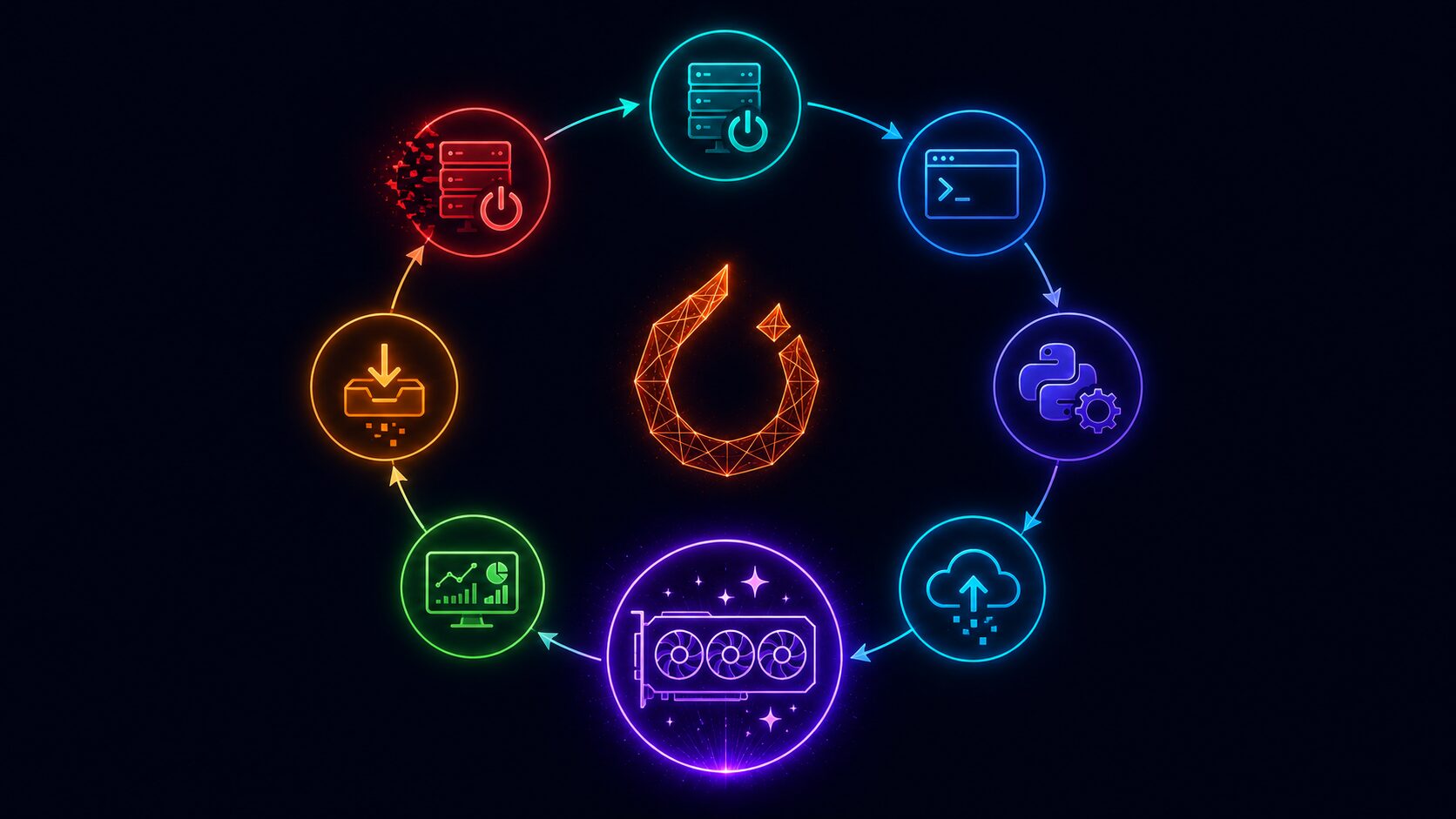
# Kiểm tra GPU hardware
nvidia-smi

# Output mong đợi: tên GPU, VRAM, CUDA version
# Ví dụ: NVIDIA RTX 4060 | 8192MiB | CUDA 12.x
Kiểm tra PyTorch nhận GPU:
python3 -c "
import torch
print('CUDA available:', torch.cuda.is_available())
print('GPU name:', torch.cuda.get_device_name(0))
print('PyTorch version:', torch.__version__)
"
Nếu CUDA available: True → GPU sẵn sàng. Nếu False, cần cài lại PyTorch đúng phiên bản CUDA — xem bước 3.
Bước 3: Setup môi trường Python
Nếu instance đã pre-installed PyTorch + CUDA, bạn có thể bỏ qua bước này. Nếu chưa:
# Tạo virtual environment (khuyến nghị)
python3 -m venv ~/venv
source ~/venv/bin/activate

# Cài PyTorch (CUDA 12.1 — kiểm tra version bằng nvidia-smi)
pip install torch torchvision torchaudio --index-url https://download.pytorch.org/whl/cu121

# Cài thêm packages thường dùng
pip install transformers datasets accelerate tensorboard tqdm
Verify lại: python3 -c "import torch; print(torch.cuda.is_available())" → True.
Bước 4: Upload dữ liệu
Upload dataset từ máy local lên instance. Có 3 cách phổ biến:
# Cách 1: SCP (đơn giản nhất)
scp -P 22 -r ./my_dataset root@YOUR_IP:/root/data/

# Cách 2: rsync (tốt cho dataset lớn, resume được)
rsync -avz -e "ssh -p 22" ./my_dataset root@YOUR_IP:/root/data/

# Cách 3: Tải trực tiếp từ Hugging Face (nếu dùng public dataset)
python3 -c "from datasets import load_dataset; ds = load_dataset('cifar10')"Với dataset lớn (>10 GB), hãy upload lên cloud storage (Sun S3) trước, rồi pull từ S3 vào instance — nhanh hơn SCP qua Internet rất nhiều.
Bước 5: Viết training script chuẩn GPU
Dưới đây là training script PyTorch hoàn chỉnh cho ResNet-50 image classification trên CIFAR-10 — đã tối ưu cho GPU Cloud:
import torch
import torch.nn as nn
import torch.optim as optim
from torchvision import datasets, transforms, models
from torch.utils.data import DataLoader
import time, os

# === CONFIG ===
BATCH_SIZE = 128
EPOCHS = 10
LR = 0.001
NUM_WORKERS = 4
CHECKPOINT_DIR = "./checkpoints"
os.makedirs(CHECKPOINT_DIR, exist_ok=True)

# === DEVICE ===
device = torch.device("cuda" if torch.cuda.is_available() else "cpu")
print(f"Training on: {device} ({torch.cuda.get_device_name(0)})")

# === DATA ===
transform = transforms.Compose([
    transforms.Resize(224),
    transforms.ToTensor(),
    transforms.Normalize((0.485, 0.456, 0.406), (0.229, 0.224, 0.225)),
])
train_set = datasets.CIFAR10(root="./data", train=True, download=True, transform=transform)
val_set = datasets.CIFAR10(root="./data", train=False, download=True, transform=transform)
train_loader = DataLoader(train_set, batch_size=BATCH_SIZE, shuffle=True,
                          num_workers=NUM_WORKERS, pin_memory=True)
val_loader = DataLoader(val_set, batch_size=BATCH_SIZE, shuffle=False,
                        num_workers=NUM_WORKERS, pin_memory=True)

# === MODEL ===
model = models.resnet50(weights=models.ResNet50_Weights.DEFAULT)
model.fc = nn.Linear(model.fc.in_features, 10)  # CIFAR-10: 10 classes
model = model.to(device)

# === TRAINING ===
criterion = nn.CrossEntropyLoss()
optimizer = optim.Adam(model.parameters(), lr=LR)

for epoch in range(1, EPOCHS + 1):
    model.train()
    running_loss = 0.0
    start = time.time()

    for batch_idx, (images, labels) in enumerate(train_loader):
        images, labels = images.to(device), labels.to(device)
        optimizer.zero_grad()
        outputs = model(images)
        loss = criterion(outputs, labels)
        loss.backward()
        optimizer.step()
        running_loss += loss.item()

    # Validation
    model.eval()
    correct, total = 0, 0
    with torch.no_grad():
        for images, labels in val_loader:
            images, labels = images.to(device), labels.to(device)
            outputs = model(images)
            _, predicted = outputs.max(1)
            total += labels.size(0)
            correct += predicted.eq(labels).sum().item()

    acc = 100. * correct / total
    elapsed = time.time() - start
    print(f"Epoch {epoch}/{EPOCHS} | Loss: {running_loss/len(train_loader):.4f} "
          f"| Val Acc: {acc:.2f}% | Time: {elapsed:.1f}s")

    # Save checkpoint every epoch
    torch.save(model.state_dict(), f"{CHECKPOINT_DIR}/resnet50_epoch{epoch}.pt")

print("Training complete!")

# === AUTO-SHUTDOWN (uncomment khi chạy chính thức) ===
# os.system("sudo shutdown -h now")
Lưu file này thành train.py trên instance.
Bước 6: Chạy training trong tmux
Đừng chạy training trực tiếp trong SSH session — nếu mất kết nối Internet, training sẽ dừng. Dùng tmux để giữ session chạy trong background:
# Tạo tmux session mới
tmux new -s train

# Chạy training script
python3 train.py

# Để detach (thoát tmux mà training vẫn chạy):
# Nhấn Ctrl+B, rồi nhấn D

# Để quay lại xem training progress:
tmux attach -t train
Bạn có thể thoát SSH hoàn toàn, đi ngủ, và quay lại kiểm tra vào sáng hôm sau — training vẫn chạy trong tmux.
Bước 7: Monitor GPU và training progress
Mở tab SSH thứ 2 (hoặc tmux pane mới) để monitor:
# Monitor GPU liên tục (refresh mỗi 1 giây)
watch -n 1 nvidia-smi

# Kiểm tra quan trọng:
# - GPU-Util: nên > 80% (nếu thấp = CPU bottleneck)
# - Memory-Usage: VRAM đang dùng bao nhiêu
# - Temperature: nên < 85°CNếu GPU-Util chỉ 20–50%, nguyên nhân thường là num_workers trong DataLoader quá thấp (tăng lên 4–8) hoặc batch size quá nhỏ (tăng lên cho đến khi gần hết VRAM). Đọc thêm: 8 kỹ thuật tối ưu chi phí GPU Cloud.
Bước 8: Download kết quả & terminate instance
Khi training xong, download checkpoint về máy local:
# Download checkpoint tốt nhất
scp -P 22 root@YOUR_IP:/root/checkpoints/resnet50_epoch10.pt ./

# Hoặc upload lên S3 để lưu trữ dài hạn
# aws s3 cp ./checkpoints/ s3://your-bucket/checkpoints/ --recursive
Sau đó, terminate instance ngay — đây là bước quan trọng nhất để tiết kiệm tiền:
# Tắt instance từ command line
sudo shutdown -h now

# Hoặc vào dashboard nhà cung cấp → Delete/Terminate instanceQuên tắt instance 1 đêm = 8 giờ × giá GPU/giờ = hàng trăm nghìn VNĐ bay hơi. Nếu bạn uncomment dòng os.system("sudo shutdown -h now") trong script, instance sẽ tự tắt khi training xong.
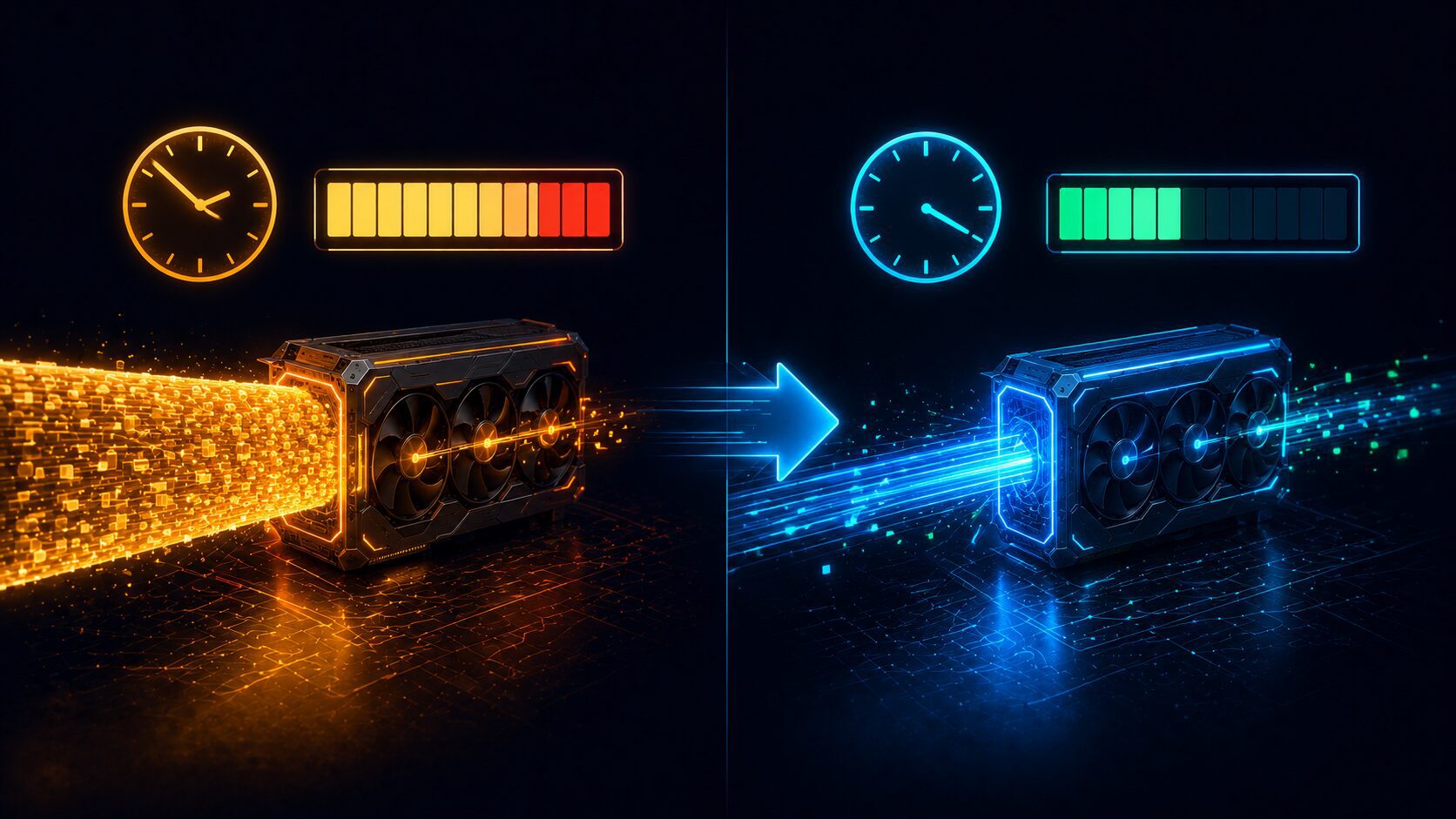
Bonus: Bật mixed precision tăng tốc 40–60%
Mixed precision dùng FP16/BF16 thay vì FP32 — training nhanh hơn 40–60%, giảm VRAM 50%, accuracy gần như không đổi. Đây là “free money” — luôn bật khi train trên GPU.
Thêm vào training loop (thay thế phần training trong script ở bước 5):
from torch.amp import autocast, GradScaler

scaler = GradScaler('cuda')

for epoch in range(1, EPOCHS + 1):
    model.train()
    running_loss = 0.0

    for images, labels in train_loader:
        images, labels = images.to(device), labels.to(device)
        optimizer.zero_grad()

        # Mixed precision: autocast forward pass
        with autocast('cuda'):
            outputs = model(images)
            loss = criterion(outputs, labels)

        # Scaled backward pass
        scaler.scale(loss).backward()
        scaler.step(optimizer)
        scaler.update()

        running_loss += loss.item()
Nếu dùng Hugging Face Transformers, đơn giản hơn nhiều:
from transformers import TrainingArguments

training_args = TrainingArguments(
    output_dir="./results",
    bf16=True,                    # Bật mixed precision BF16
    per_device_train_batch_size=32,
    num_train_epochs=3,
    gradient_checkpointing=True,  # Tiết kiệm VRAM
    save_strategy="epoch",
)
Câu hỏi thường gặp
Cần setup gì trước khi train PyTorch trên GPU Cloud?
3 thứ: CUDA driver (kiểm tra bằng nvidia-smi), PyTorch đúng phiên bản CUDA (torch.cuda.is_available() phải True), và dataset đã upload. Hầu hết GPU Cloud hiện nay pre-installed sẵn.
Làm sao kiểm tra GPU hoạt động trên PyTorch?
Chạy: import torch; print(torch.cuda.is_available()); print(torch.cuda.get_device_name(0)). Trả về True + tên GPU = sẵn sàng.
Mixed precision training là gì và cách bật?
Mixed precision dùng FP16/BF16 tăng tốc 40–60% và giảm VRAM 50%. Dùng torch.amp.autocast('cuda') + GradScaler, hoặc bf16=True trong Hugging Face Trainer.
Nên dùng tmux hay screen?
Cả hai đều giữ session chạy khi ngắt SSH. tmux phổ biến hơn: tmux new -s train → chạy script → Ctrl+B, D detach → tmux attach -t train quay lại.
Tại sao nên dùng GPU Cloud thay vì Colab?
Cloud ổn định (không bị ngắt), GPU mạnh hơn, dữ liệu persistent, full root access. Colab phù hợp debug, Cloud phù hợp training chính thức. So sánh chi tiết: Cloud GPU cho sinh viên.
Bắt đầu train PyTorch trên Sunteco GPU Cloud
Pre-installed CUDA + PyTorch + Jupyter, thanh toán VNĐ, dùng thử miễn phí.
- ✅ GPU từ RTX 4060 đến H100 — chọn theo model size
- ✅ Setup dưới 5 phút, SSH ngay
- ✅ Pay-as-you-go, tắt khi xong